
NOTE: Please read the full article before proceeding with the configuration!
What is Two Factor Authentication
Two Factor Authentication (2FA) is a method that requires the input from two different sources for the authentication of a user on a system. Often these two factors are “something that you know” (your password), and “something that you have” (your smart-phone); Authentication now consists of confirming you know the combination of the username and password, and you have the smartphone that can generate a valid Time-based One-Time Password (TOTP).
In contrast to a method which only requires input from one single source, e.g. the password, 2 Factor Authentication provides an extra level of protection, and the use of one-time passwords assures the credentials can not be replayed.
For more information, please take a look at this blogpost and Wikipedia.
2 Factor Authentication (2FA) at Kolab Now
2FA at Kolab Now involves the password prompt and a Time-based One-Time Password (TOTP) algorithm. The preferred provider of the TOTP is Aegis Authenticator (see below); a free and open source app for smart-phones. It is available for Android and AphyOS from your favorite app market. iOS users can make use of the TOTP Authenticator, available in the Apple app store.
2FA is enabled by logging in to the cockpit, finding the related user account under Users and clicking it. Check ‘2 Factor Authentication’ box and hit ‘Submit’.
User accounts that have 2FA enabled in the subscription will only be able to use the web client. All other clients will be blocked at the IMAP, POP, ActiveSync, CalDAV, CardDAV and WebDAV level.
To disable 2FA (and enable other means of access): Login to your cockpit, Press User Accounts, select your user account and un-check the checkbox 2-Factor Authentication. Remember to press Submit in the bottom of the page when done.
Configuring 2FA for a Single User Account
|
|
|
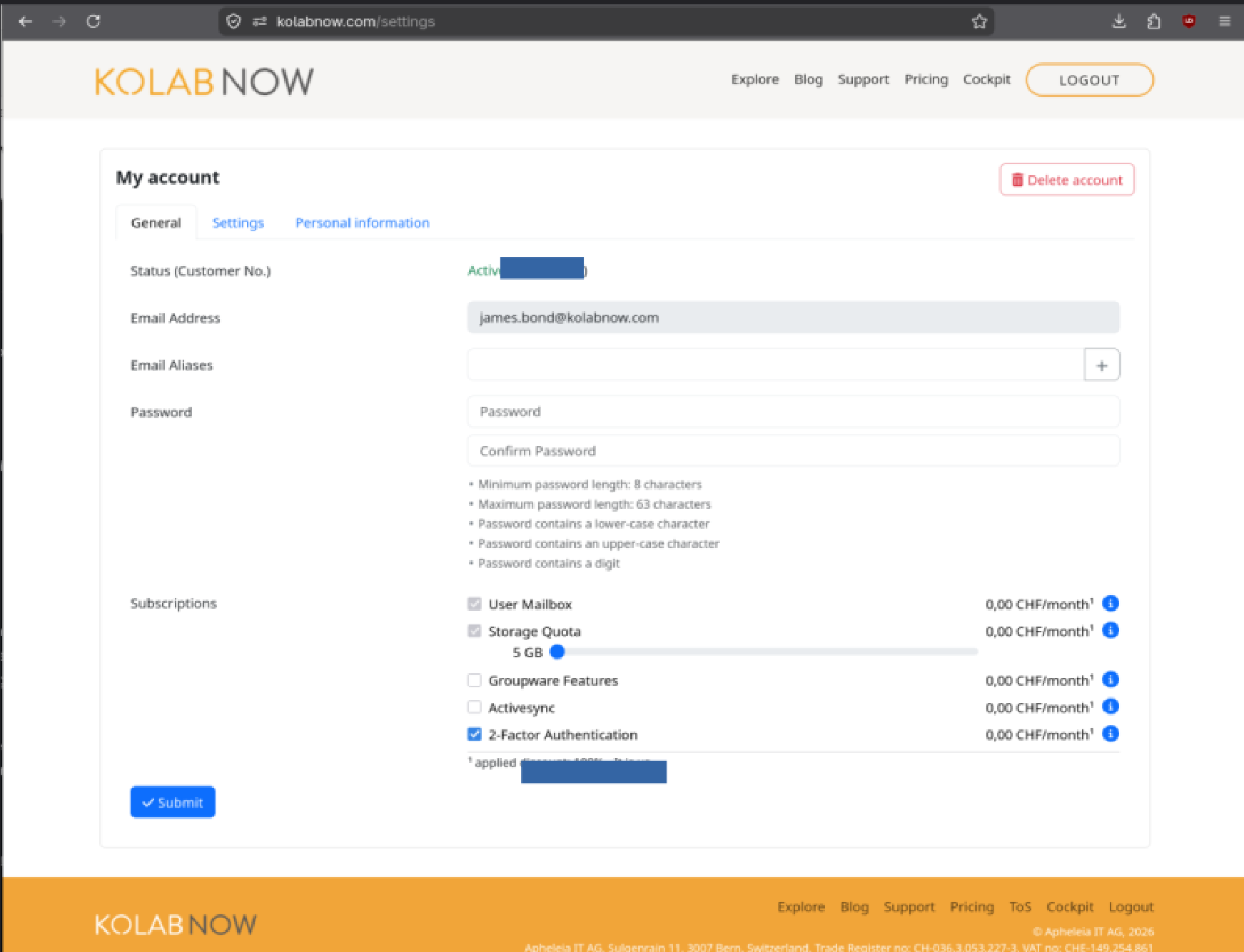
| First enable 2 Factor Authentication in the Cockpit: Log in, find the My account button, and press it. Scroll down to Subscriptions, find the 2 Factor Authentication checkbox and check it. Do not forget to click Submit in the bottom of the page. |
 |
|
|
|
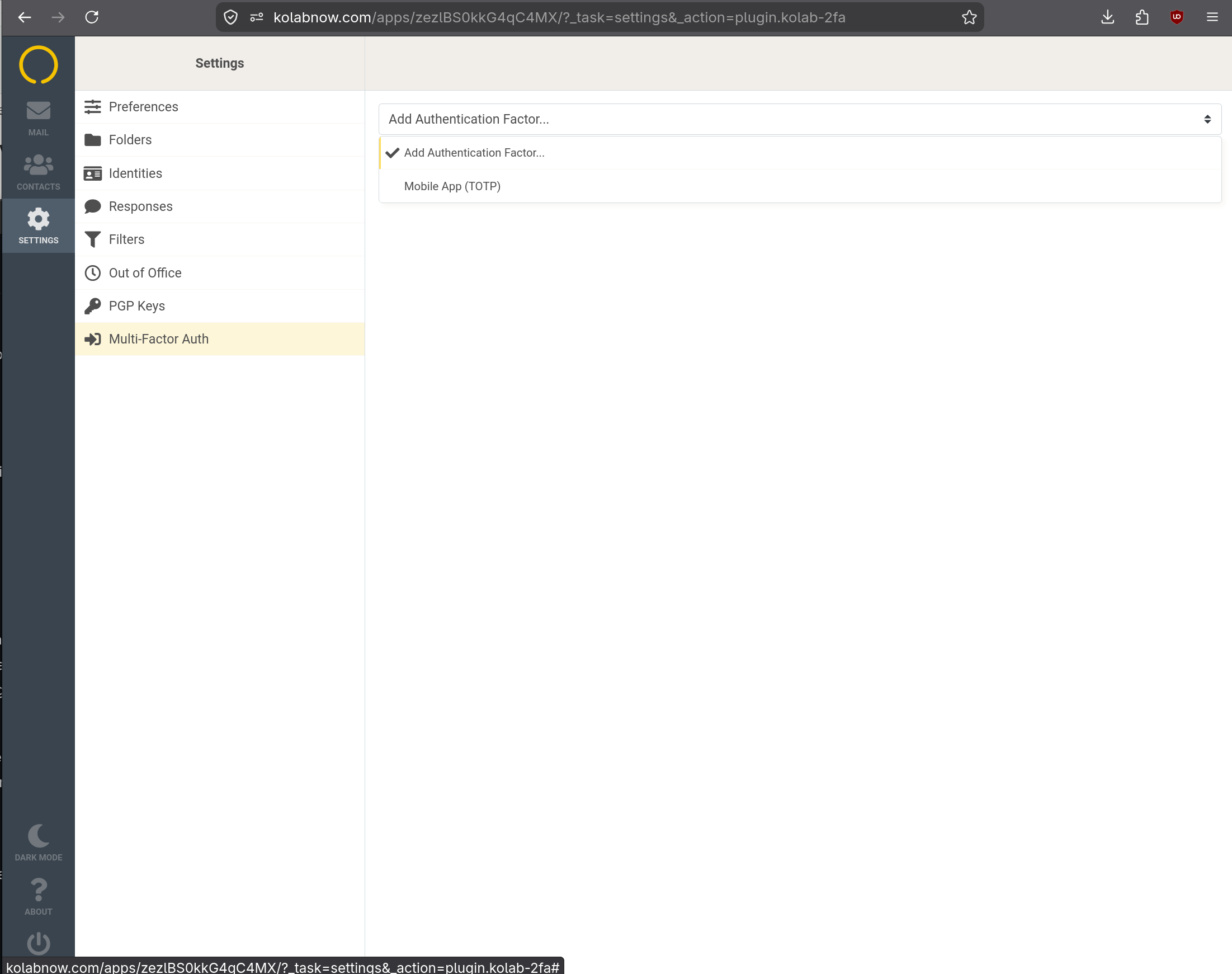 |
Login to the Web Client, and go to Settings -> Multi-Factor Auth, and select Mobile app (TOTP) from the drop-down menu. |
|
|
|
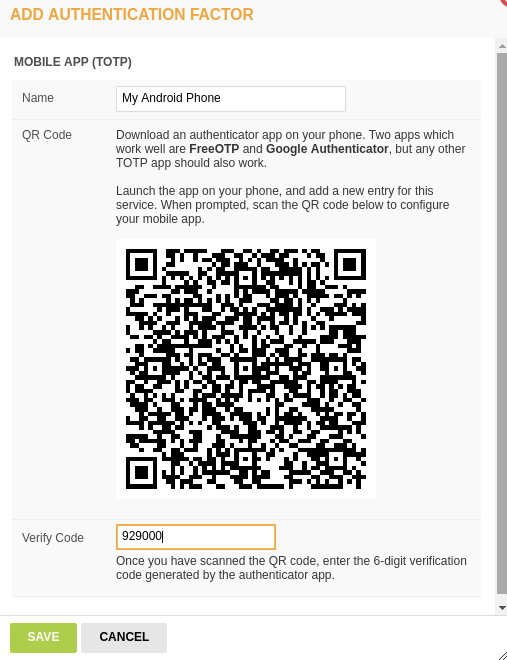
| A QR code appears with a name field and a verification field. Give the token a meaningful name, such as the device this TOTP is configured for.MAKE A SCREENSHOT OF THIS PAGE FOR BACKUP!Print this screenshot and save it together with your other valuable papers, such as passport, birth certificate etc. Then click SAVE |
 |
|
|
|
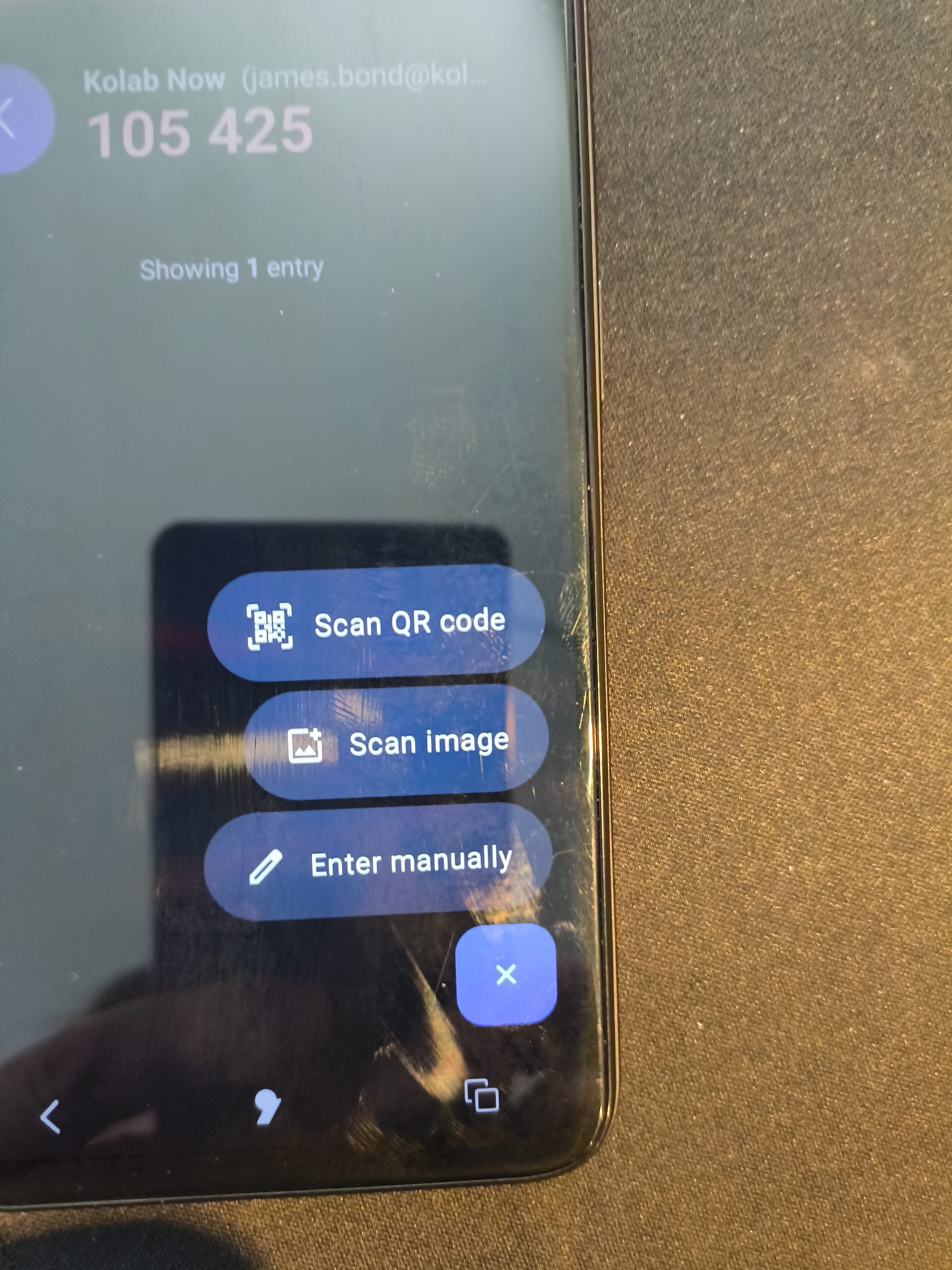 |
Open the TOTP app on the smart-phone. Add a new entry, and select the Scan QR code (in some apps this can simply be a ‘+’ or it can be named something else). The TOTP app will provide you a verification code that you enter in the verification code field in the webbmail client (see above). NOTE: TOTP Applications will prevent you from creating a screenshot on the smart-phone itself. |
|
|
|
| The TOTP token is now registered on the Kolab Now server, and 2FA is enabled for this user. The next time the user logs in, a TOTP code will be required. | 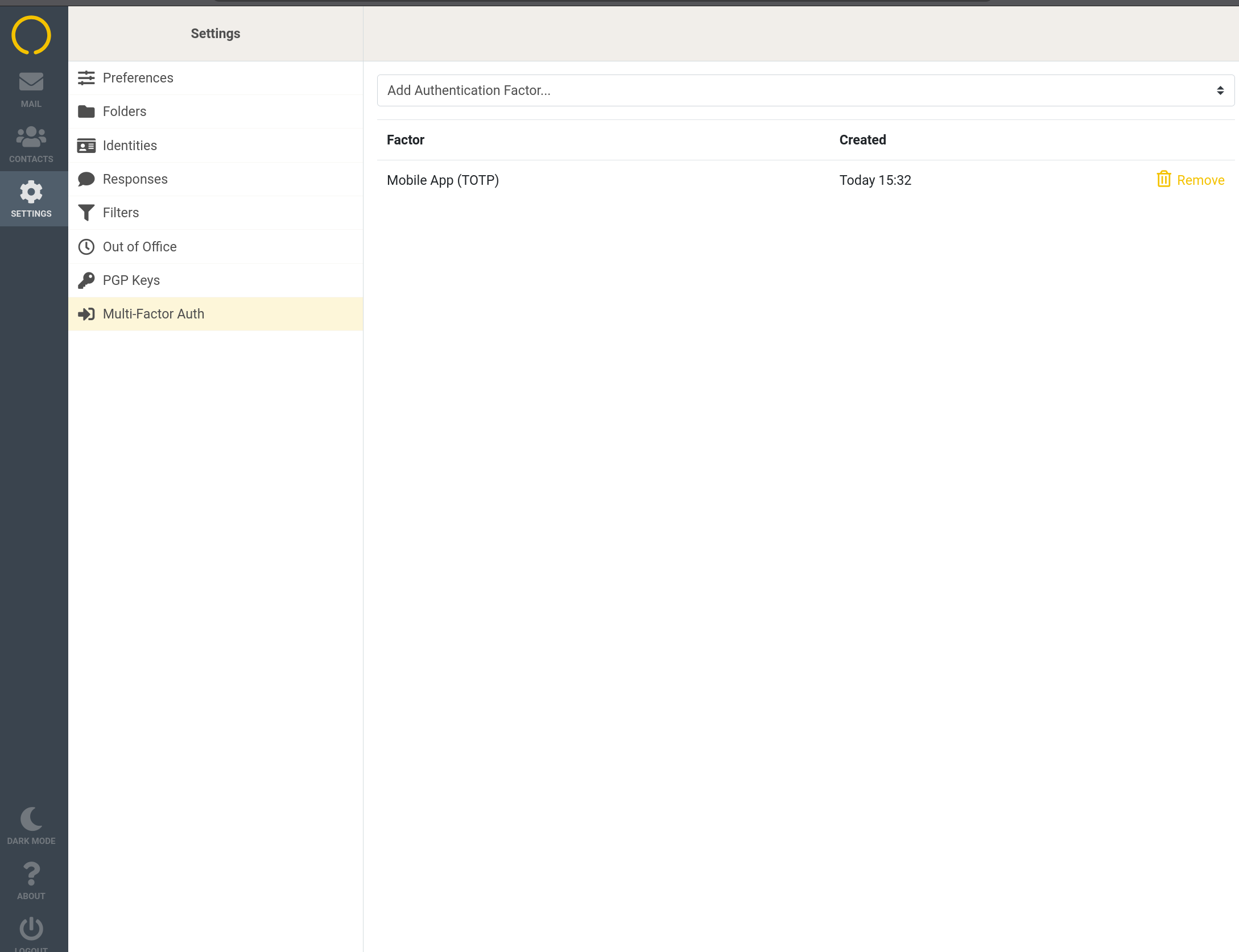 |
Logging in to Kolab Now with 2FA
|
|
|
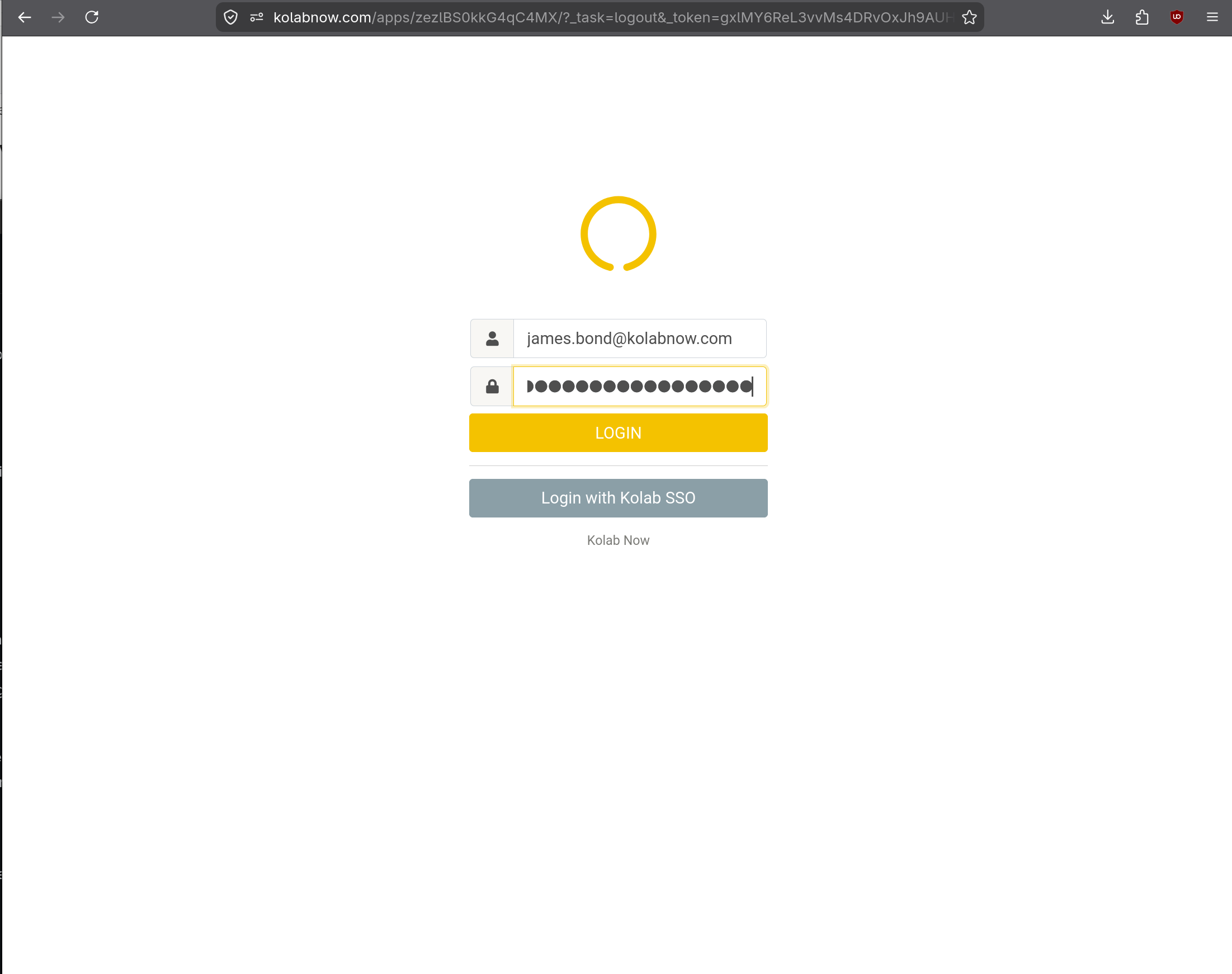
When you log in to the Web Client ,using the direct URL you are requested to, either:
|
 |
|
|
|
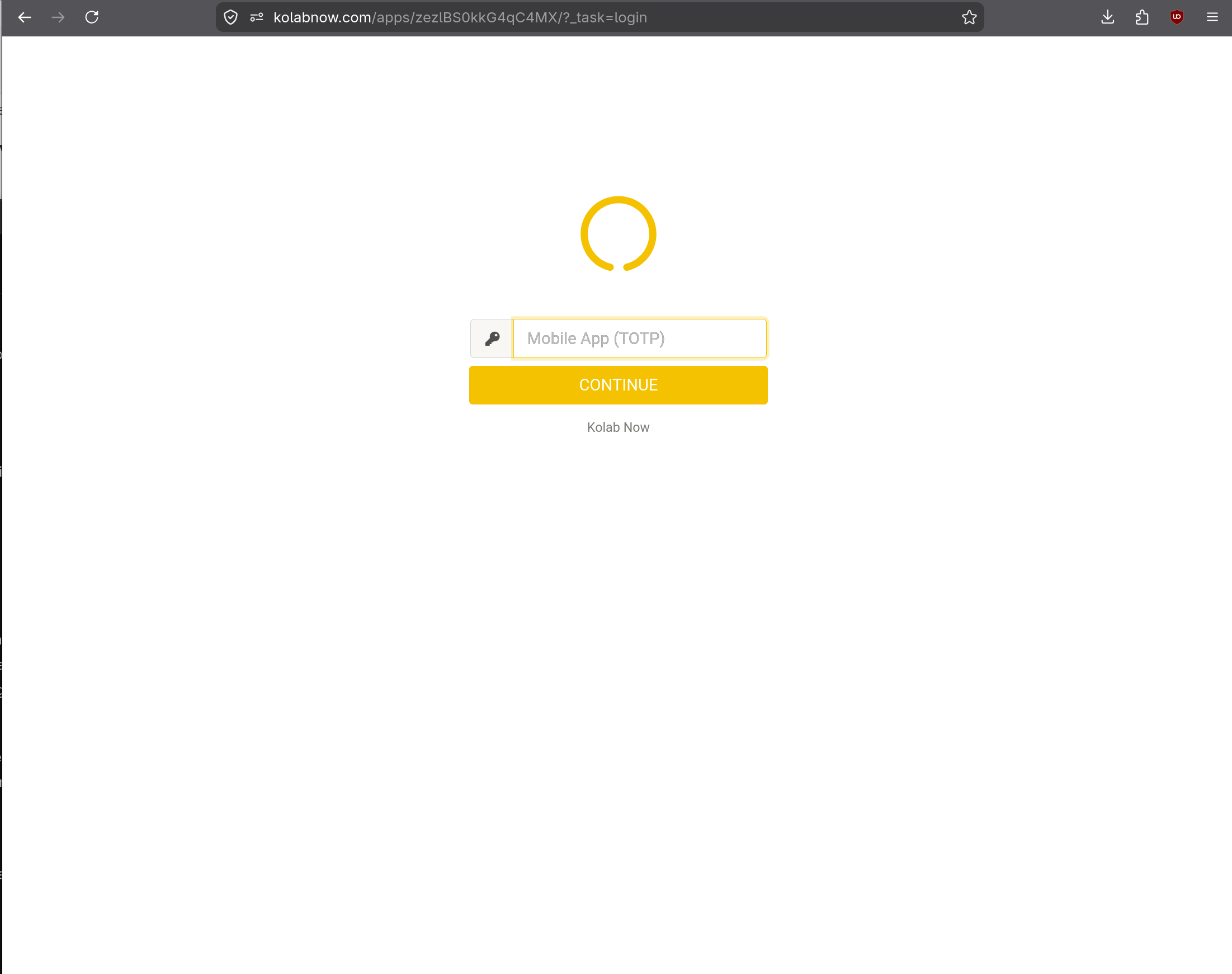 |
Upon submission, should a second factor be required for this account already, a new page will request the TOTP code. |
|
|
|
| Consult the TOTP app on your smart-phone and type in the 6 digit code presented. | 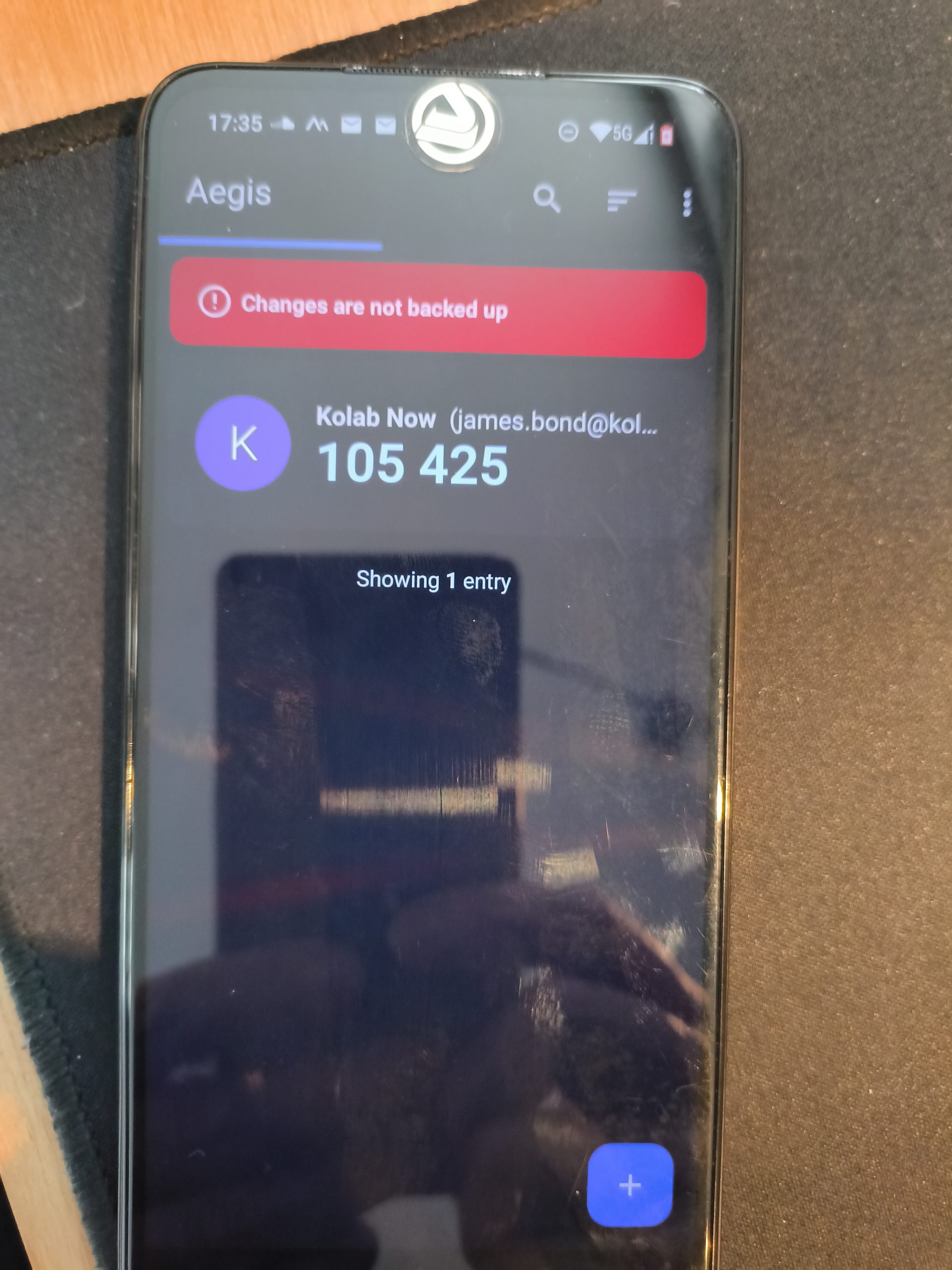 |
|
|
|
 |
You are now authenticated and logged in. |
Lost token
It happens that phones get stolen, break down or people simply buy new phones. In such situation you could loose your OTP token. Should you loose your token, then bring out the screenshot printout that you saved and use it for creating a new functional token.
Manage 2 FA for users in your account
A primary account owner can administer one or more user accounts through the User Accounts button in the cockpit. When a primary account owner creates a new account, 2FA is not enforced. The primary account owner will need to check the checkbox in the users profile, and the new user will need to go through the configuration in the webclient.
Some older Group Manager Accounts has a specific admin user for administration, which is not a full user account (admin@yourdomain.tld can login to the cockpit, but not to the webmail). Such accounts can not configure authentication to require a 2nd factor for the admin account (“admin@yourdomain.tld”).
UPDATE: Since the writing of this article, the tool FreeOTP has ended maintenance. we tested a few other TOTP apps; Some works, but are not maintained anymore. Thanks to one of our active users (You know who you are..) we found Aegis Authenticator. This is a great TOTP app; Open Source and free software. Without directly giving any recommendations… we like that one:
The tool is available in the Google playstore and via F-droid.
For iOS users:
..is available in the Apple app store (among other TOTP authenticator apps).